How to Add Employee into HRMS system?

Before adding employees into the HRMS system, you need to set up the departments and positions first. Follow the steps below to add departments and positions.

0:00
/0:25

Set up Department or Sub-Department

0:00
/0:09

Set up Position


Now, you may start adding employees into the HRMS system.

There are several methods to add employees into the HRMS system.

Method 1 — Using the “New Employee” Button

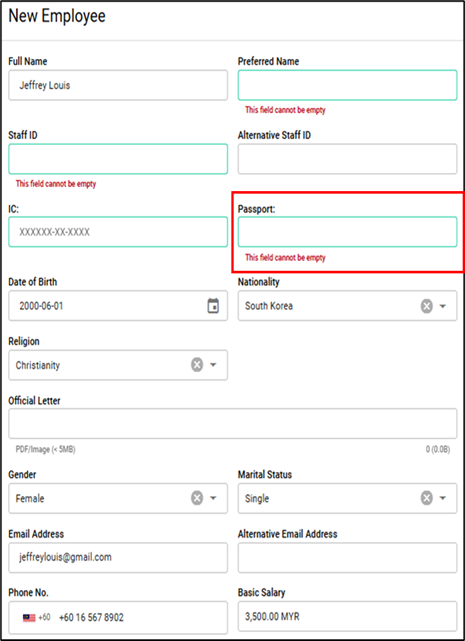
a) Click on the Employee module, then click the “New Employee” button.

b) Fill in all the required fields.
0:00
/0:11
⚠️
If the employee is not a Malaysian, HR only needs to enter the passport number instead of the IC number. The passport number will be used as the password for the user's first login to the mobile app.
⚠️
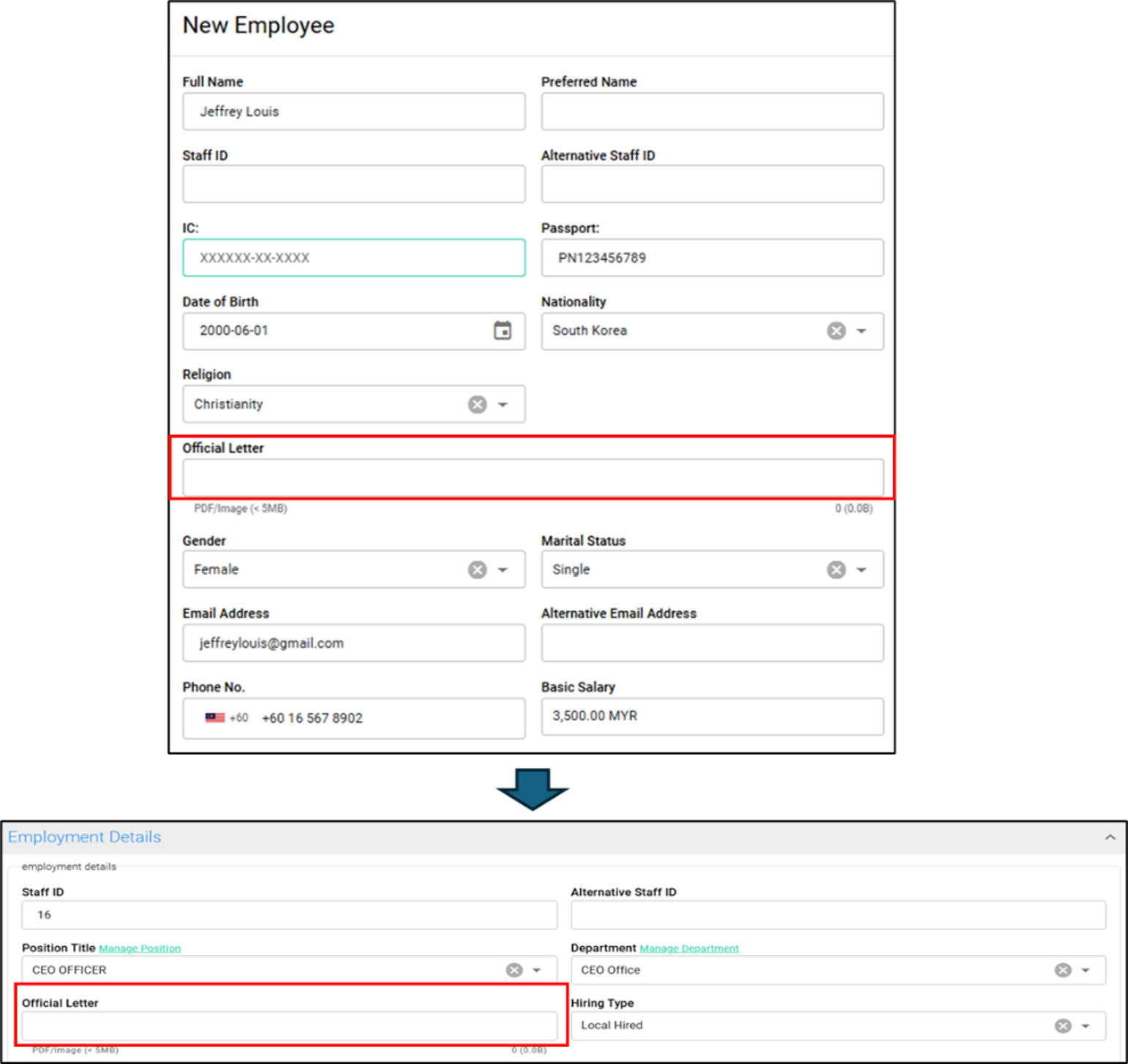
If the employees’ nationality is not a Malaysian, HR must attach an “Official Letter”. If the official letter is not yet ready, HR can still proceed with creating the respective employee. The official letter can be attached later under the employee’s details once it becomes available.

Method 2 — Using the “Add by batch” Button

a) First, click the “Download Employee Details” button to download the employee template.

0:00
/0:25

Download "Add Employee by batch" Template.

b) After entering the employee information, click the “Import Employees From Template” button to upload the completed Excel file back into the system.

0:00
/0:24

Import "Add Employee by batch" Template.

⚠️
There are 3 tabs in the employee template. You may only fill in the "Employee Details Template". Columns marked with a red icon in the Remarks field are mandatory and must be filled in.
⚠️
It is NOT recommended to copy and paste data from external files into this employee template, especially for fields that contain dropdown options.

You are almost done importing all employee information into the system. As the final step, click the link below to learn how to update employee information. 👇

How to Update Employee into HRMS system?
You are almost done importing all employee information into the system. You may update the information below for each employee if it was not entered during the employee creation process: * Employee’s Reporting Manager * Employee’s Attendance Method * Employee’s Bank Account Details * Employee’s Income Tax number, EPF number, SOCSO number ⚠️If

Need Assistance?

If you have any questions or require assistance, please reach out via WHATAPPS 012-2819553.