
How to Submit CP22 via MyTax Using TXT File
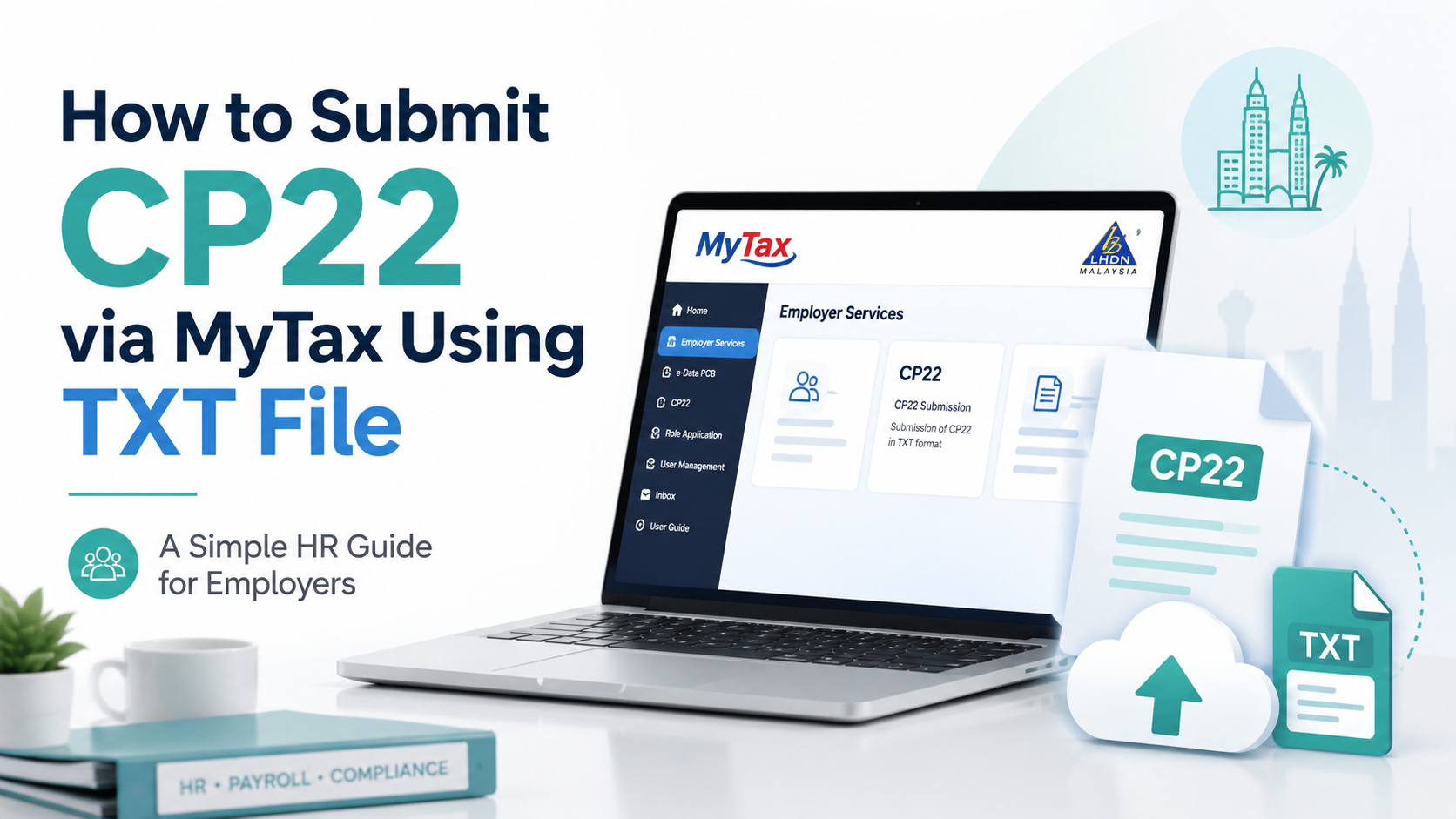
When a new employee joins the company, employers must submit CP22 to LHDN within 30 days from the employee’s commencement date.
For EMHRMS users, HR can first download the CP22 TXT file from EMHRMS, then upload the file to MyTax e-CP22 for submission.
Quick Summary
| Item | Simple Explanation |
|---|---|
| Form | CP22 |
| Purpose | Notify LHDN when a new employee joins |
| Deadline | Within 30 days from employee start date |
| Submission method | MyTax e-CP22 |
| File option | Upload CP22 TXT file generated from EMHRMS |
Step 1: Download CP22 TXT File from EMHRMS (Simplified)
Before submitting CP22 in MyTax, HR should first generate and confirm the CP22 file from EMHRMS.
| Step | What HR Should Do |
|---|---|
| 1 | Log in to EMHRMS. |
| 2 | Go to the CP22. |
| 3 | Select the new employee record. |
| 4 | Generate the CP22 file and review it in PDF format first to confirm accuracy. |
| 5 | Once confirmed, proceed to download the CP22 TXT file. |
| 6 | Save the TXT file in a proper folder for upload and record keeping. |
Step 2: Upload CP22 TXT File in MyTax
After the TXT file is downloaded from EMHRMS, HR can upload it through MyTax e-CP22.
| Step | What HR Should Do |
|---|---|
| 1 | Go to MyTax Portal: https://mytax.hasil.gov.my/ |
| 2 | Log in using the authorised employer account. |
| 3 | Select the role as Employer / Majikan. |
| 4 | Go to Perkhidmatan ezHasil. |
| 5 | Select e-CP22. |
| 6 | Choose the TXT file upload option. |
| 7 | Upload the CP22 TXT file generated from EMHRMS. |
| 8 | Review the uploaded employee information. |
| 9 | Update any missing or additional information manually, if required. |
| 10 | Submit the CP22 declaration. |
| 11 | Download or save the acknowledgement slip for filing. |
Important Reminder for TXT Upload
| Item | What HR Should Know |
|---|---|
| File format | The TXT file must follow LHDN’s required CP22 format. |
| Employee details | Check name, IC/passport number, start date, and remuneration before submission. |
| Cash allowance | TXT upload may only support limited allowance types. Extra allowance details may need to be updated manually after upload. |
| Final checking | Always review uploaded information before final submission. |
| Filing | Save the acknowledgement slip after submission. |
Manual Way: Submit CP22 Without TXT File
If HR is not using TXT upload, CP22 can still be completed manually inside MyTax e-CP22.
| Step | What HR Should Do |
|---|---|
| 1 | Log in to MyTax Portal. |
| 2 | Select Employer / Majikan role. |
| 3 | Go to Perkhidmatan ezHasil → e-CP22. |
| 4 | Add the new employee manually. |
| 5 | Fill in employee personal details, employment details, and remuneration details. |
| 6 | Review the information. |
| 7 | Submit the declaration. |
| 8 | Save the acknowledgement slip. |
Key Takeaway
For EMHRMS users, the easiest way is:
Generate CP22 → review in PDF → download TXT file → upload to MyTax e-CP22 → review details → submit declaration → save acknowledgement slip.
This helps HR reduce manual entry and keep the CP22 submission process more organised.
HR Compass Reminder
This article is for general HR knowledge sharing. Employers should always refer to the latest LHDN guidelines and MyTax e-CP22 manual before making final submission.