
How to Update Employee into HRMS system?
You are almost done importing all employee information into the system. You may update the information below for each employee if it was not entered during the employee creation process:
- Employee’s Reporting Manager
- Employee's Attendance Method
- Employee's Bank Account Details
- Employee's Income Tax number, EPF number, SOCSO number
Method 1: Update via each employee’s profile individually.
a) Click on the employee’s name to navigate to the Employee Profile page.
b) Click Employee Details, then click Edit.
- Select the Reporting Manager.
- Choose the Attendance Method.
- Select the Working Hours.
(Example: If you choose an adaptive schedule, you will need to set the adaptive schedule period.)
c) After completing the updates, click Save.
Update Employee Details
d) Next, click Compensation Details and click Edit.
- Update Bank Name, Account No and Account Type.
- Update the income tax number, EPF number and SOCSO Number.
- Toggle on Pay HRDF and Spouse is Working if necessary
e) After completing the updates, click Save.
Update Compensation Details
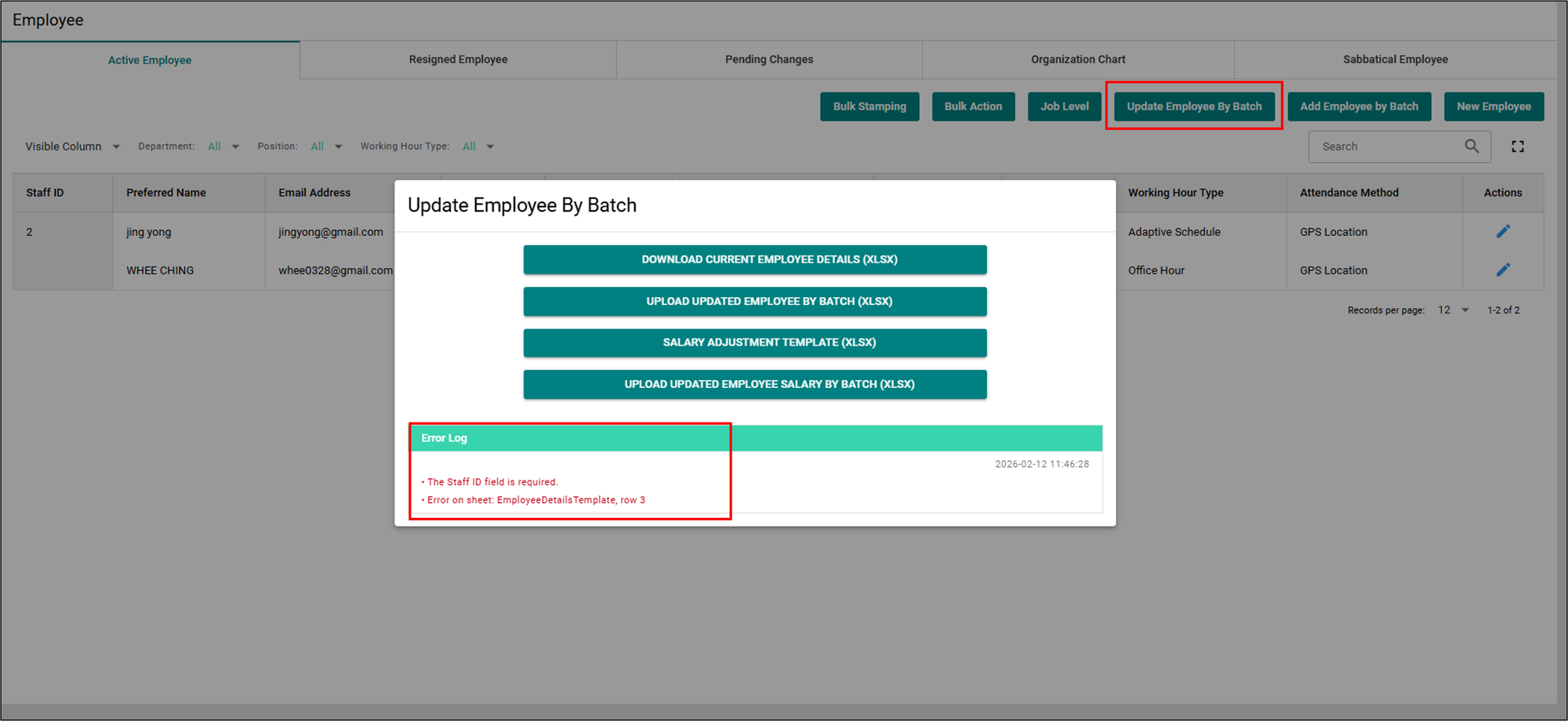
Method 2: Update using the “Update Employee By Batch” button.
a) Click "Download Current Employee Details" button.
b) Update the existing information in the downloaded Excel file.
c) Once the updates are complete, import the file by clicking the “Upload Updated Employee By Batch” button.
d) You have now successfully completed importing all employee information into the HRMS system.
Need Assistance?
If you have any questions or require assistance, please reach out via WHATAPPS 012-2819553.