
How to Log In and Set Up Your Company Profile
In this guide, we’ll walk you through how to log in and set up your company profile in Emspaced. Let’s get started!
Step 1: Log In to Emspaced HRMS System
a) Open the Emspaced login page.
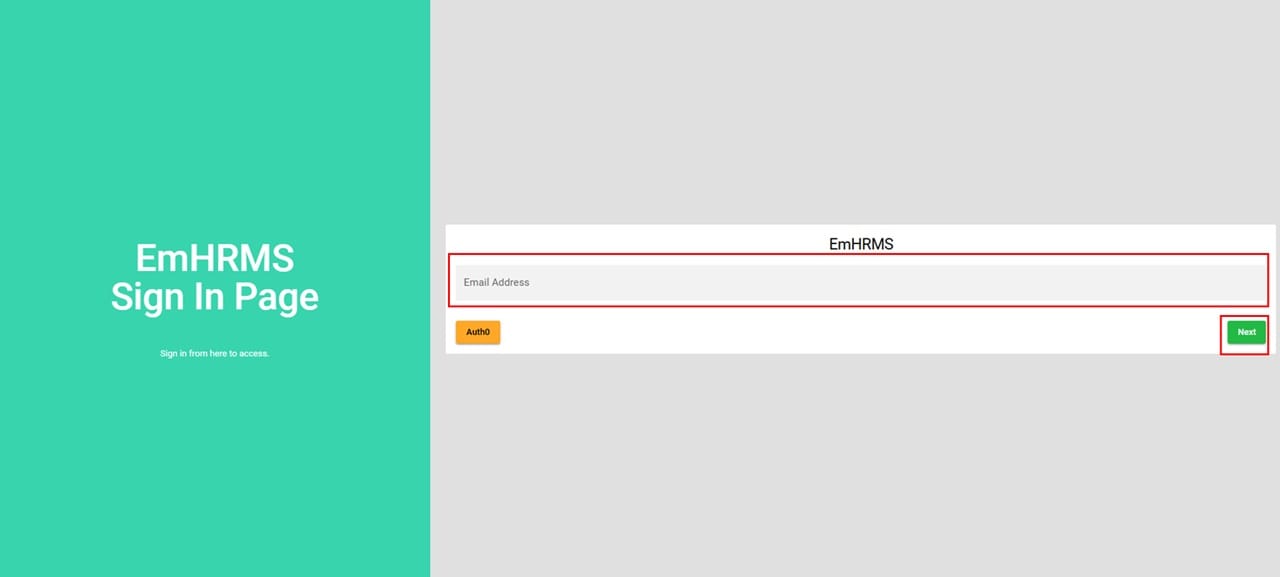
b) Enter your registered email address and click Next.
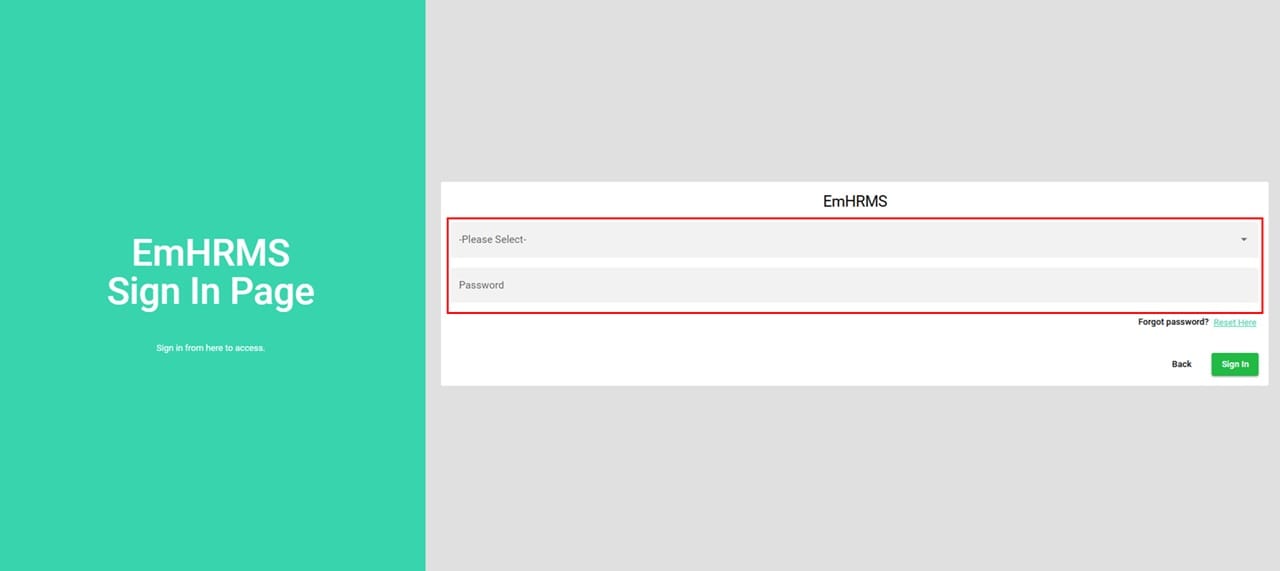
c) Enter your password. If your account manages multiple companies, select the company you wish to log in to from the dropdown list.
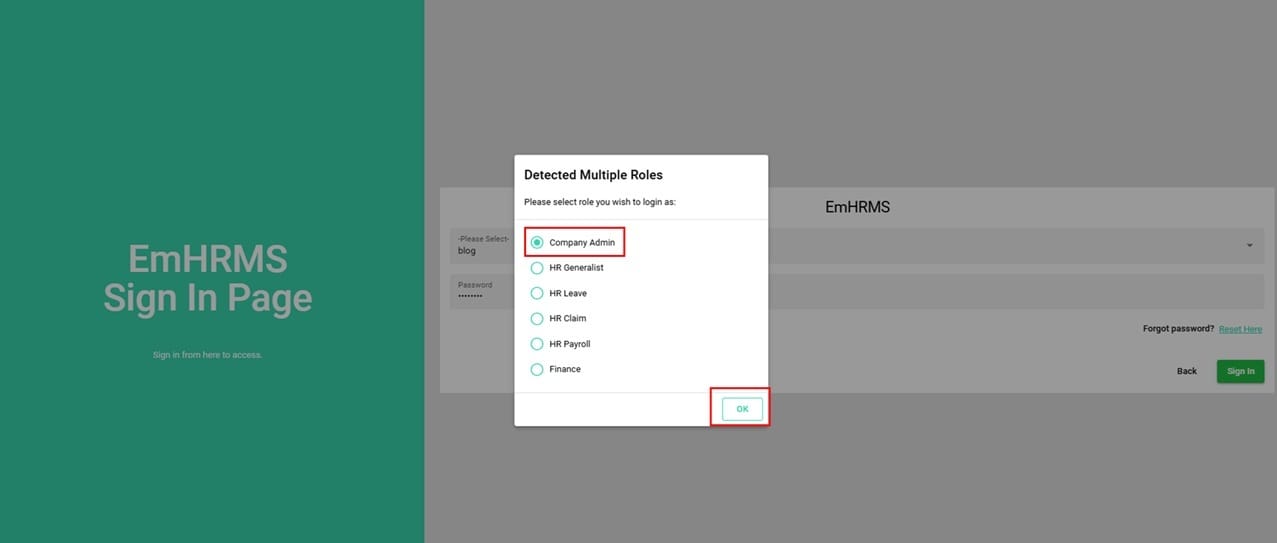
d) Select role you wish to log in.
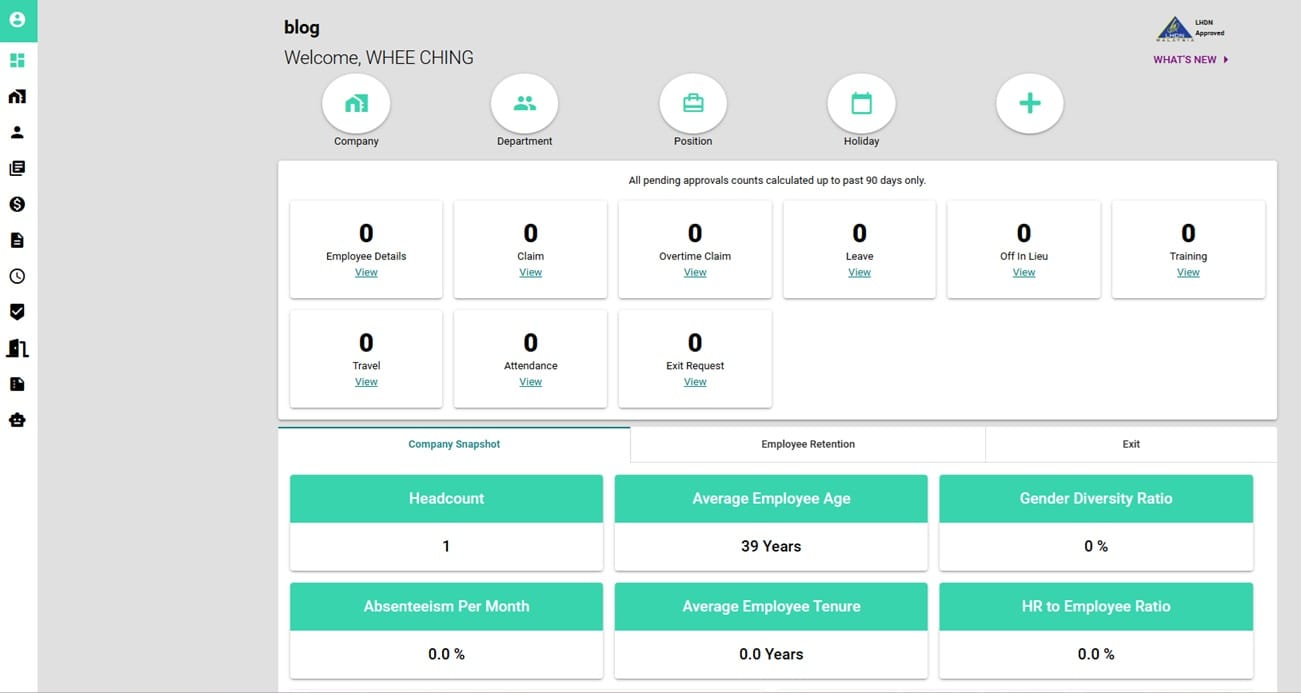
e) Once login is successful, you will be redirected to your company dashboard.
Step 2: Set Up Your Company Profile
After logging in, go to the Company Module to view or update your company profile.
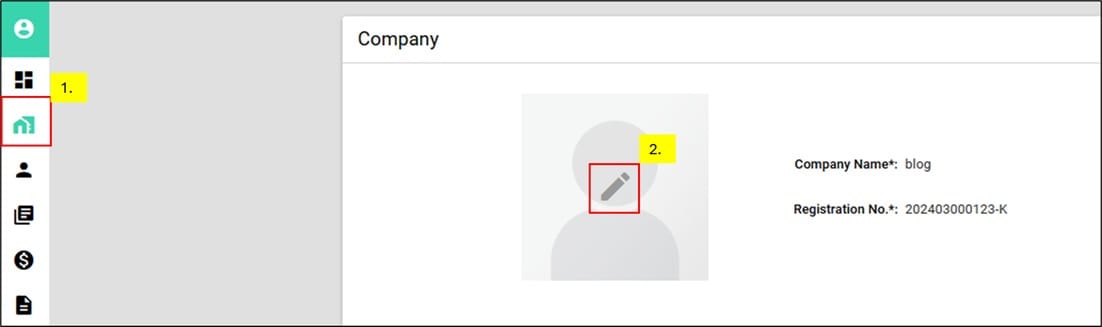
a) Click on the profile picture and upload your company logo or photo.
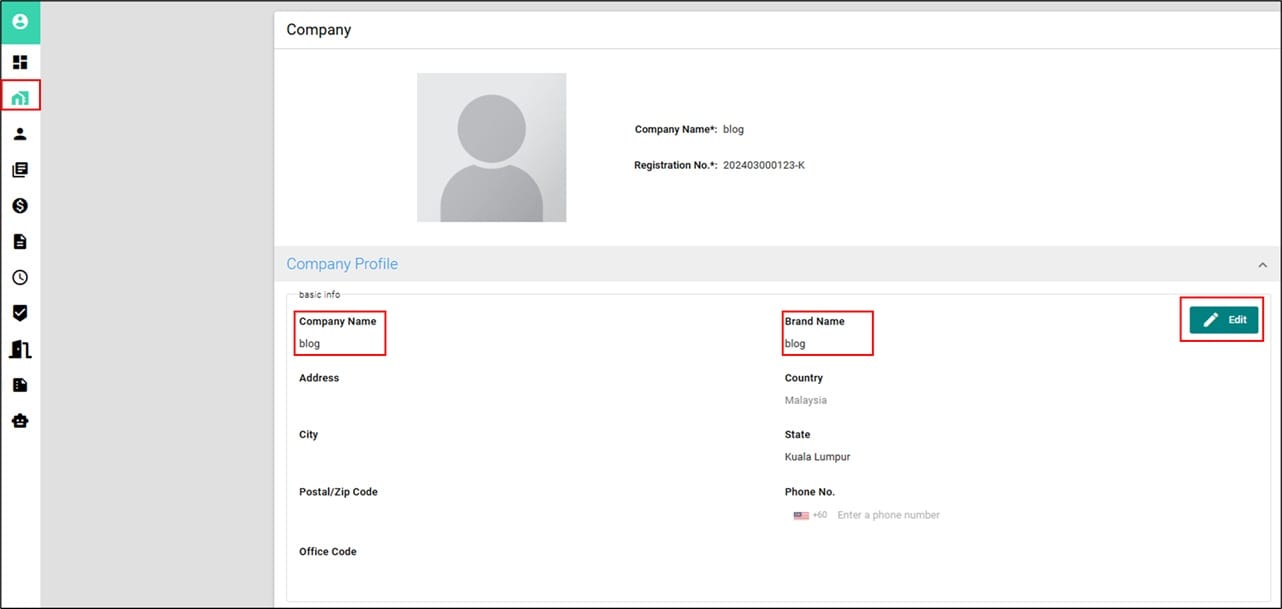
b) Enter your Company Name and Brand Name.
-
Company Name is your official registered company name.
-
Brand Name is your preferred display name shown in the back-office dashboard and mobile apps.
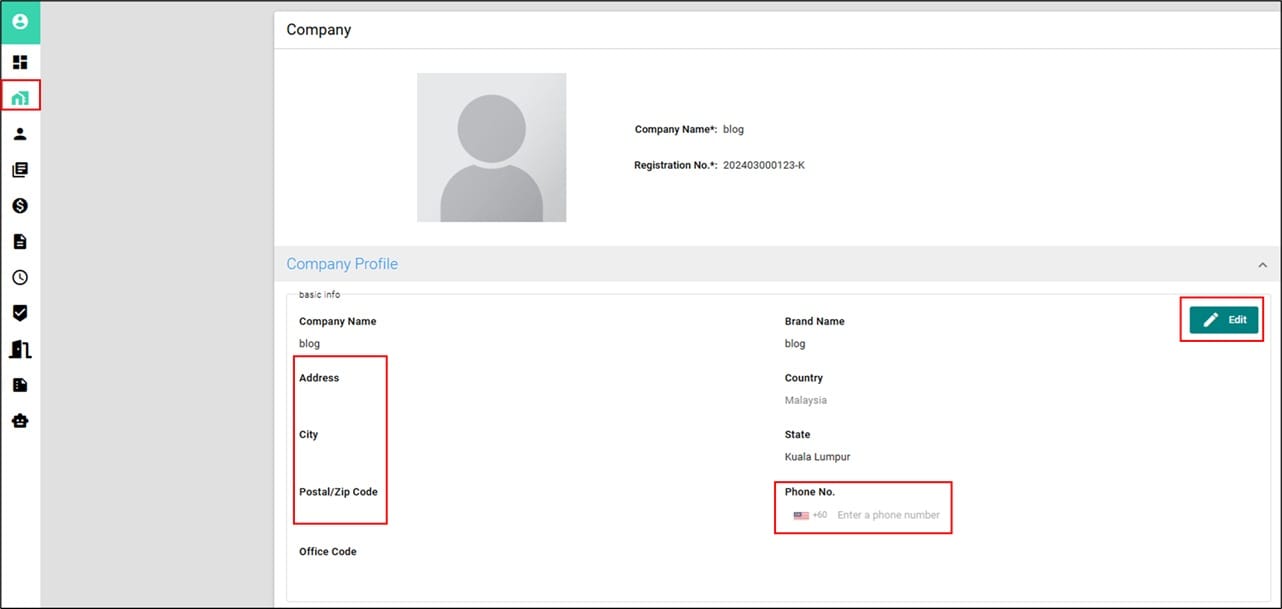
c) Enter your address, city, postal/ZIP code, and phone number.
Your company profile is now ready for use.
Need Assistance?
If you have any questions or require assistance, please reach out via WHATAPPS 012-2819553.