
How to Submit CP22A via MyTax: A Simple Guide for HR
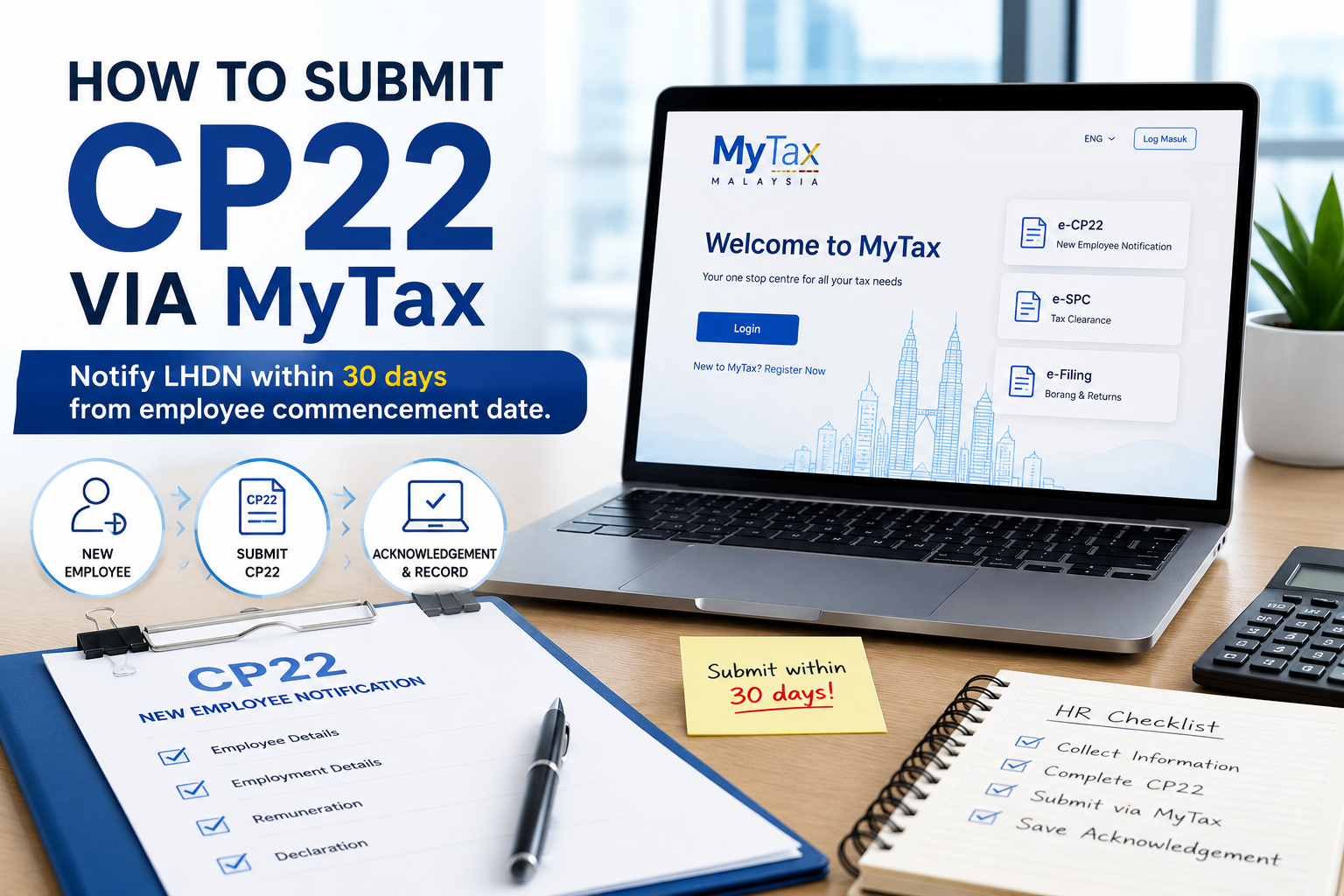
When an employee leaves the company, HR may need to notify LHDN by submitting Form CP22A.
CP22A is used by private sector employers to inform LHDN about an employee’s cessation of employment, including resignation, retirement, termination, or cessation due to death.
Quick Summary
| Item | Simple Explanation |
|---|---|
| Form | CP22A |
| Purpose | Notify LHDN when a private sector employee leaves employment |
| Applies to | Private sector employees |
| Deadline | At least 30 days before employment cessation |
| Death case | Within 30 days after employer is informed of the employee’s death |
| Submission method | Online through MyTax using e-SPC |
Official Website
HR can access MyTax here:
MyTax Portal:
https://mytax.hasil.gov.my/
Official LHDN reference:
LHDN – Notification of Termination of Service:
https://www.hasil.gov.my/en/employers/notifications-of-termination-of-service/
When Should HR Submit CP22A?
HR should submit CP22A when a private sector employee is leaving the company.
| Situation | What HR Should Do |
|---|---|
| Employee resigns | Submit CP22A at least 30 days before last employment date |
| Employee retires | Submit CP22A at least 30 days before cessation date |
| Employee is terminated | Submit CP22A at least 30 days before cessation date, where possible |
| Employee passes away | Submit CP22A within 30 days after employer is informed of the death |
Before Submission: Information HR Should Prepare
| Information Needed | Examples |
|---|---|
| Employer details | Company name, employer tax number / E number |
| Employee details | Full name, IC / passport number, tax number |
| Employment details | Date of commencement, date of cessation, position |
| Final payroll details | Final salary, allowance, bonus, leave pay, compensation, gratuity, if applicable |
| PCB records | Monthly Tax Deduction record |
| Contact details | Employee address and contact information |
Step-by-Step Guide: How to Submit CP22A via MyTax e-SPC
| Step | What HR Should Do |
|---|---|
| 1 | Go to MyTax Portal: https://mytax.hasil.gov.my/ |
| 2 | Log in using the authorised employer account. |
| 3 | Select the role as Employer / Majikan. |
| 4 | Go to the employer service area and select e-SPC. |
| 5 | Choose the relevant submission for CP22A. |
| 6 | Add or select the employee who is leaving. |
| 7 | Fill in the employee’s cessation details, including last employment date. |
| 8 | Fill in final remuneration details, such as salary, allowance, bonus, leave pay, gratuity, or compensation where applicable. |
| 9 | Review all details carefully before submission. |
| 10 | Submit the declaration. |
| 11 | Download or save the acknowledgement / tax clearance record for filing. |
Important HR Reminder
For CP22A, HR should be careful with final payment.
| Item | What HR Should Know |
|---|---|
| Final salary | Check whether payment should be withheld pending tax clearance, where applicable |
| Bonus / commission | Include final remuneration details if applicable |
| Leave encashment | Include if paid to employee |
| Compensation / gratuity | Check tax treatment carefully |
| Filing | Keep acknowledgement and supporting payroll records |
Simple HR Workflow
For every employee leaving the company, HR can follow this flow:
Confirm resignation / cessation date → prepare final payroll details → log in to MyTax → submit CP22A via e-SPC → save acknowledgement → keep records in employee file.
Key Takeaway
CP22A is an important tax clearance step when a private sector employee leaves employment.
HR should submit CP22A through MyTax e-SPC at least 30 days before the employee’s cessation of employment, and keep the acknowledgement record properly for future reference.
HR Compass Reminder
This article is for general HR knowledge sharing. Employers should always refer to the latest LHDN guidelines before making final tax clearance or final payment decisions.